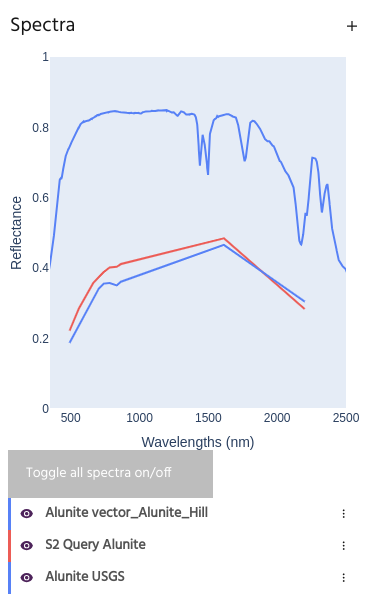
Load spectra from external file
Spectra can be brought into Marigold from several types of sources:
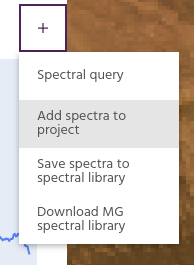
All of these methods are available by opening the Spectra menu and selecting
Add spectra to project.
ASCII spectra
ASCII spectral libraries can be loaded into Marigold.
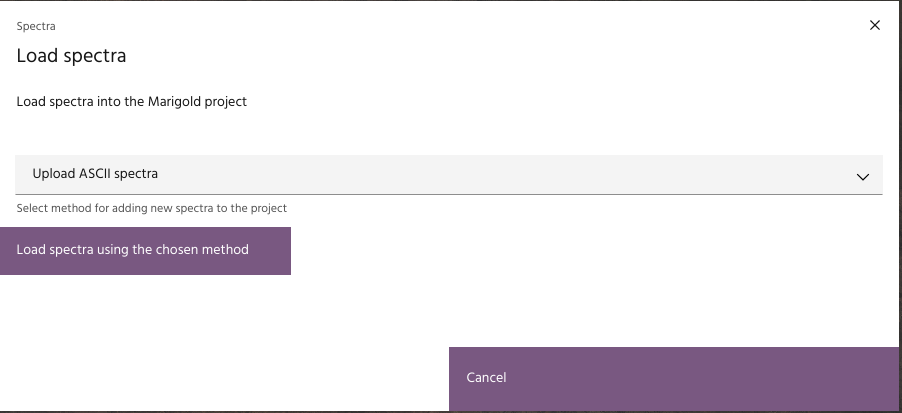
- Select
Upload ASCII spectraand clickLoad spectra using the chosen method.
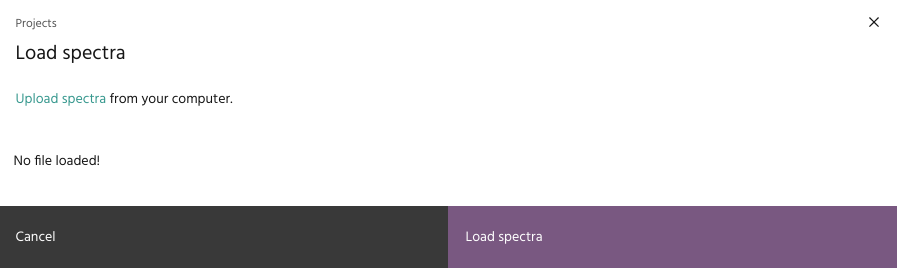
- Click the
Upload spectralink on the resulting dialog and choose an appropriate file. A preview of the file will be shown in the dialog.
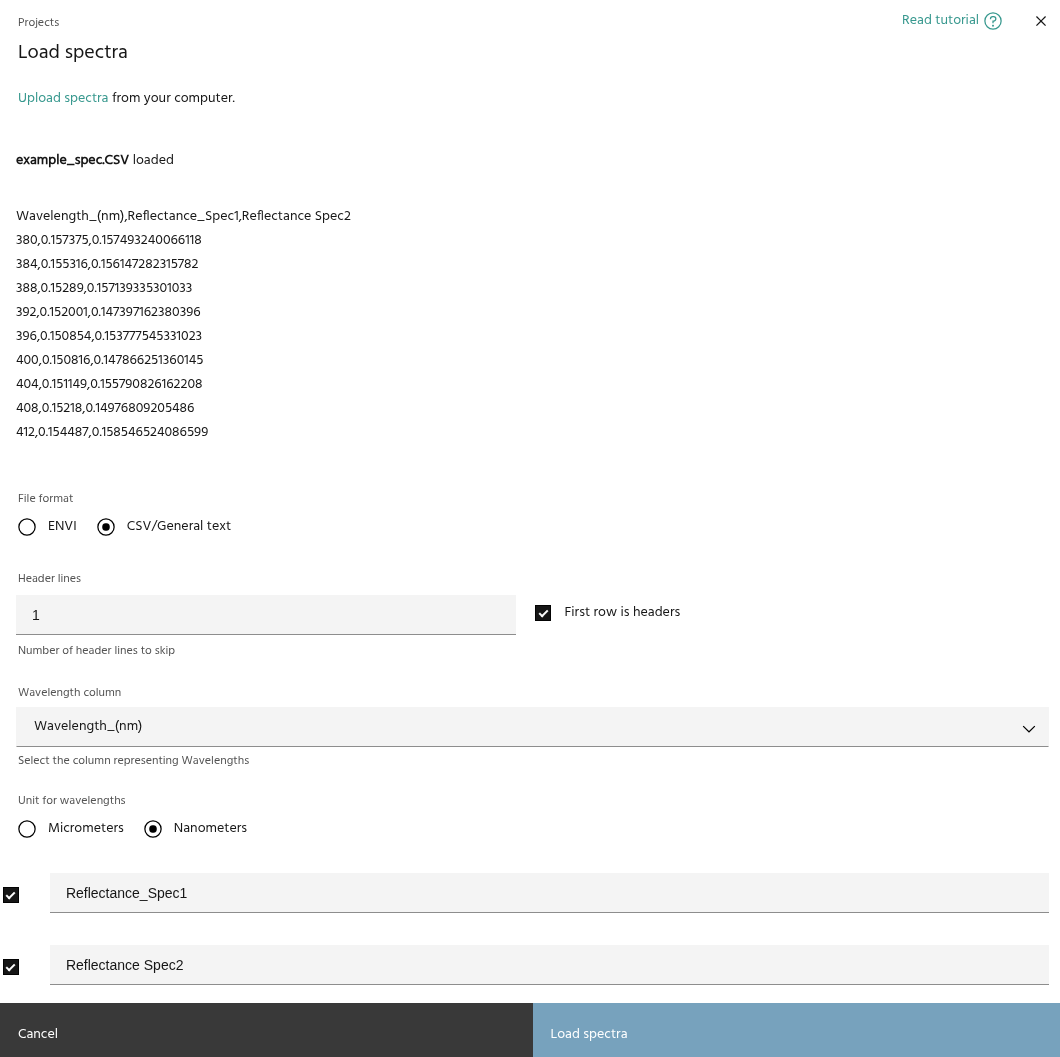
- For generic text files such as CSVs, set the number of header lines. If the first line in the file represents header values, check the box.\
- Set the appropriate column for
Wavelengthinformation and whether wavelengths are defined in micrometers or nanometers.\ - Select and name thedesired spectra and click
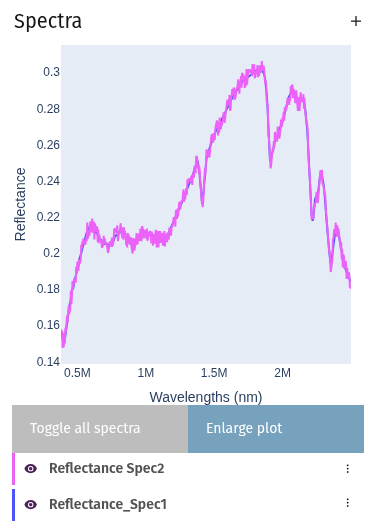
Load spectra. Spectra are now available for further use.
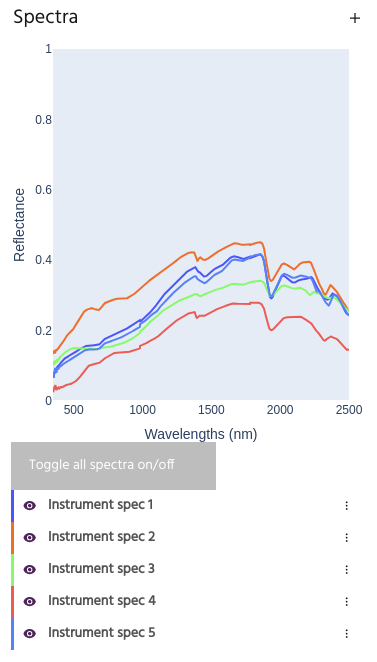
Instrument spectra
Marigold can load binary files from spectrometers such as what are some brands of these things.
- Select
Upload instrument spectraand clickLoad spectra using the chosen method.
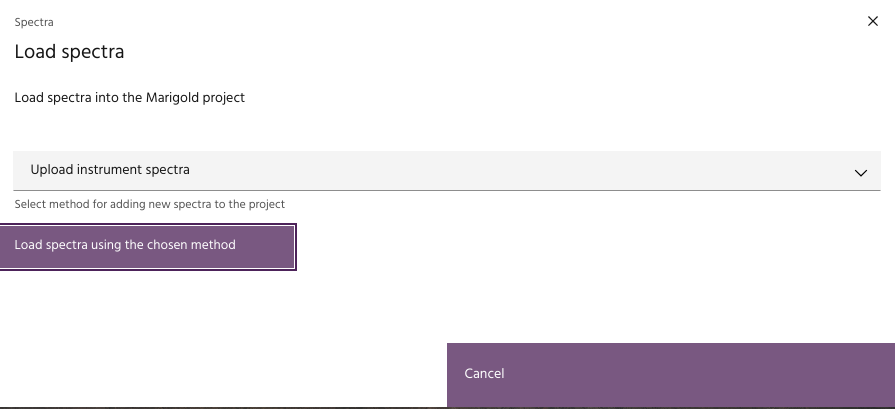
- Select the files you want to load.
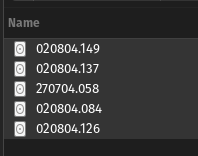
- A dialog will pop up allowing you to rename each spectrum, if desired.
- Spectra will be loaded into the project for further use.
Marigold spectral library
Spectra that have been saved from another Marigold project can be loaded into a new project.
- Select
Add from a previously saved Marigold spectral libraryand selectLoad spectra using the chosen method.
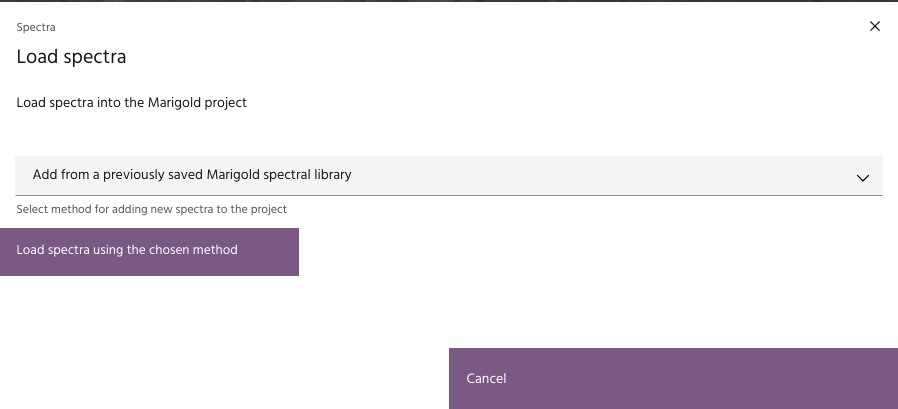
- Choose the appropriate Marigold spectral library. Spectra will be loaded
automatically, along with any associated point or vector files.